Mediaboard
Version 0.2.2View: Git, Documentation, Overview
Fuze Mediaboard is a self-hosted multimedia messaging platform, running on the FuzeHttp framework. It is written for humans, by humans.
Features include:
- Advanced permissions
- Audio, Image, and video embeds
- Easy database migration on update
- File uploading
- Screen-share
- Voice chat
Supported OS: FreeBSD, Linux, MacOS. Windows support coming soon.
Getting started
Running a chat server may seem daunting, but hosting a basic instance is actually simple. As the tutorial progresses, you will start with running a local text-only server, which will evolve into a fully-featured online platform.
Compiling from source
Prerequisites: Git, CMake (>= 3.28), Boost (>= 1.88), SQLite OR PostgreSQL.
First ensure that submodules are downloaded. Use this command:
git submodule update --init --recursive
Now, to compile the server:
cmake -B build -G Ninja -D WITH_WEBRTC=OFF -D WITH_MAGICK=OFF
cmake --build build
cmake --install build --prefix install
Compiling is known to work with clang-19, but not GCC 14.
Running the server
- If compiled from source, execute
./install/bin/MediaboardServer --create_owner - If using the AppImage, mark the file as executable and then run it.
--create_owner flag is required on first boot. When the server starts, an invitation link will appear in the command-line output.
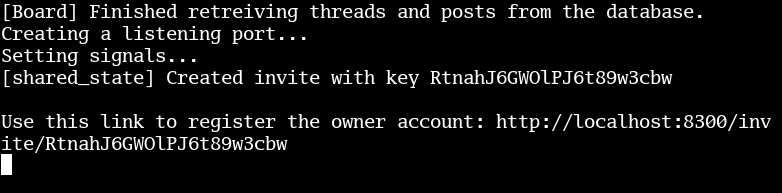
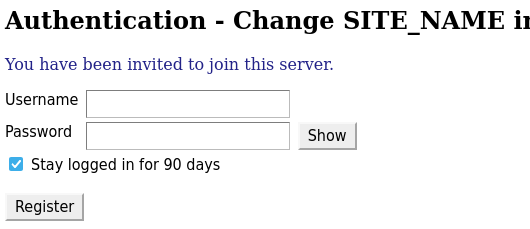
If you ever forget the password, you can simply run the create_owner command again. Note that it will not be the same account.
Making it public
Fuze mediaboard requires HTTPS for secure remote authentication. It is recommended to use a reverse proxy like NGINX. SSL certificates (required for HTTPS) can be obtained for free using Certbot.
Example NGINX config.
Ensure your IP is accessible to the outside world, using port forwarding if necessary.
Permissions
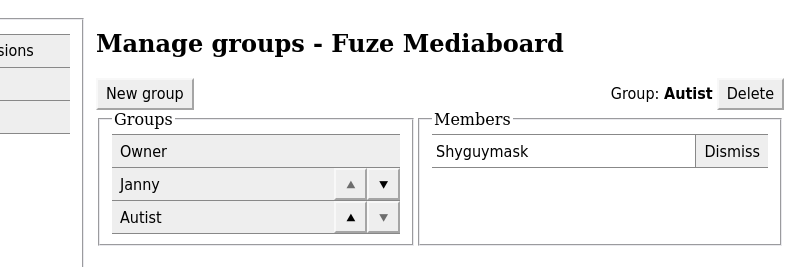
By default, only the owner can read and write messages.
- After logging in, click on the "Manage server" tab in the toolbar as an administrator.
- In the Manage permissions tab, click "Add group" and select "Public".
- Change setting to Allow for the permissions you want to grant.
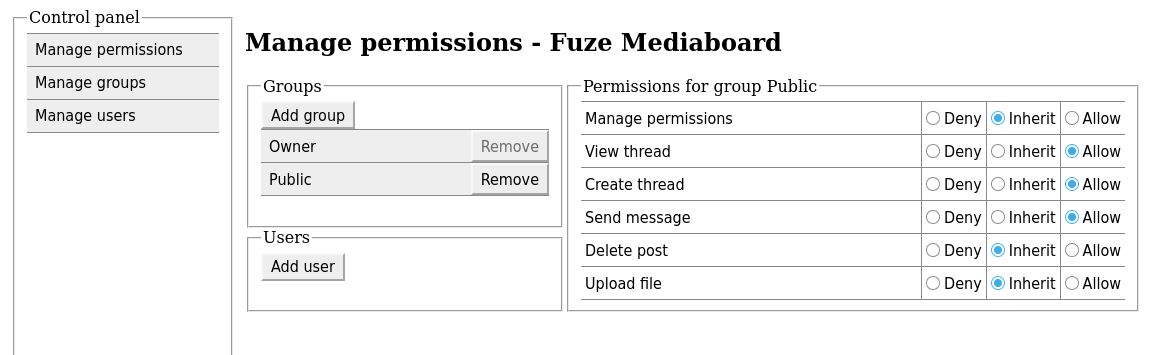
Leaving a setting on Inherit means the permission will be searched by traversing up the inheritance tree (if applicable), and cascading down the group heirarchy until a non-inherited setting is found. If no permission setting is found by the time inheritance passes the server-level setting for Public, permission is denied.
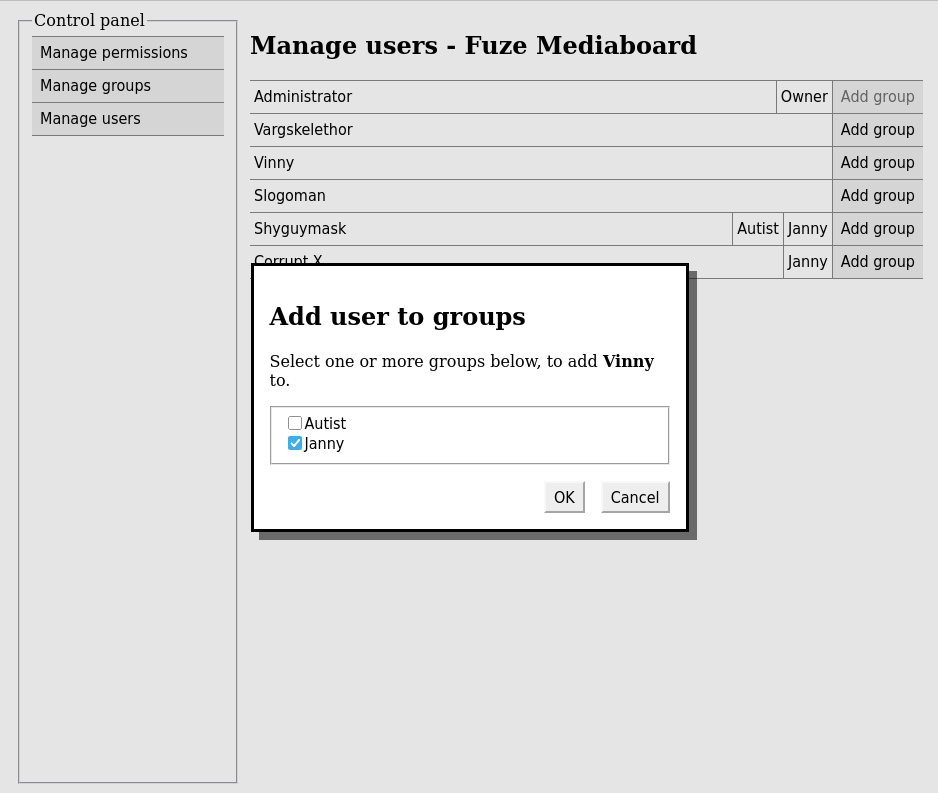
If both a user and group permission are set on an object, the user setting takes priority.
Configuration
Changes made to config.ini are read when the server starts. These options can also be passed directly in the command line, which will override what is set in the config file.
| config.ini | |
|---|---|
| server_port | Serves http://localhost:8300 by default. Change this if running multiple Mediaboard instances. |
| threads | Number of async threads. Values greater than 1 should be used for testing only. |
| file_size_limit_mb | For limiting the maximum size of user-uploaded files and to prevent abuse. |
| favicon_url site_name | Cosmetic settings. |
| strip_metadata | Removes metadata from uploaded images (except SVG files). |
| thumbnail_file_exension thumbnail_size | Format must be supported by ImageMagick. Please note that any change in this setting will not apply to existing thumbnails - those will have to be converted manually. |
| avif_thumbnails heic_thumbnails svg_thumbnails webp_thumbnails mp4_thumbnails webm_thumbnails | Requires the respective formats to be installed in the instance of ImageMagick used - Use magick -list format to see if they are supported.Video formats require ffmpeg. |
| sqlite_database_file | Path to SQLite database file. Ignored when compiled with the PostgreSQL interface. |
|
postgresql_host postgresql_port postgresql_user postgresql_database_name | PostgreSQL database connection parameters. Only used when compiled with the PostgreSQL interface. |
| environment_variable_for_secret | Secret is used for registration, but is not strictly necessary.If secret_required=true, this environment variable must be visible to the server |
| secret_required | Controls whether environment_variable_for_secret must be found |
Embedding into a webpage
Fuze Mediaboard can be embedded inside of a page by using an iframe:
<iframe src="http://localhost:8300/?board=board"></iframe>
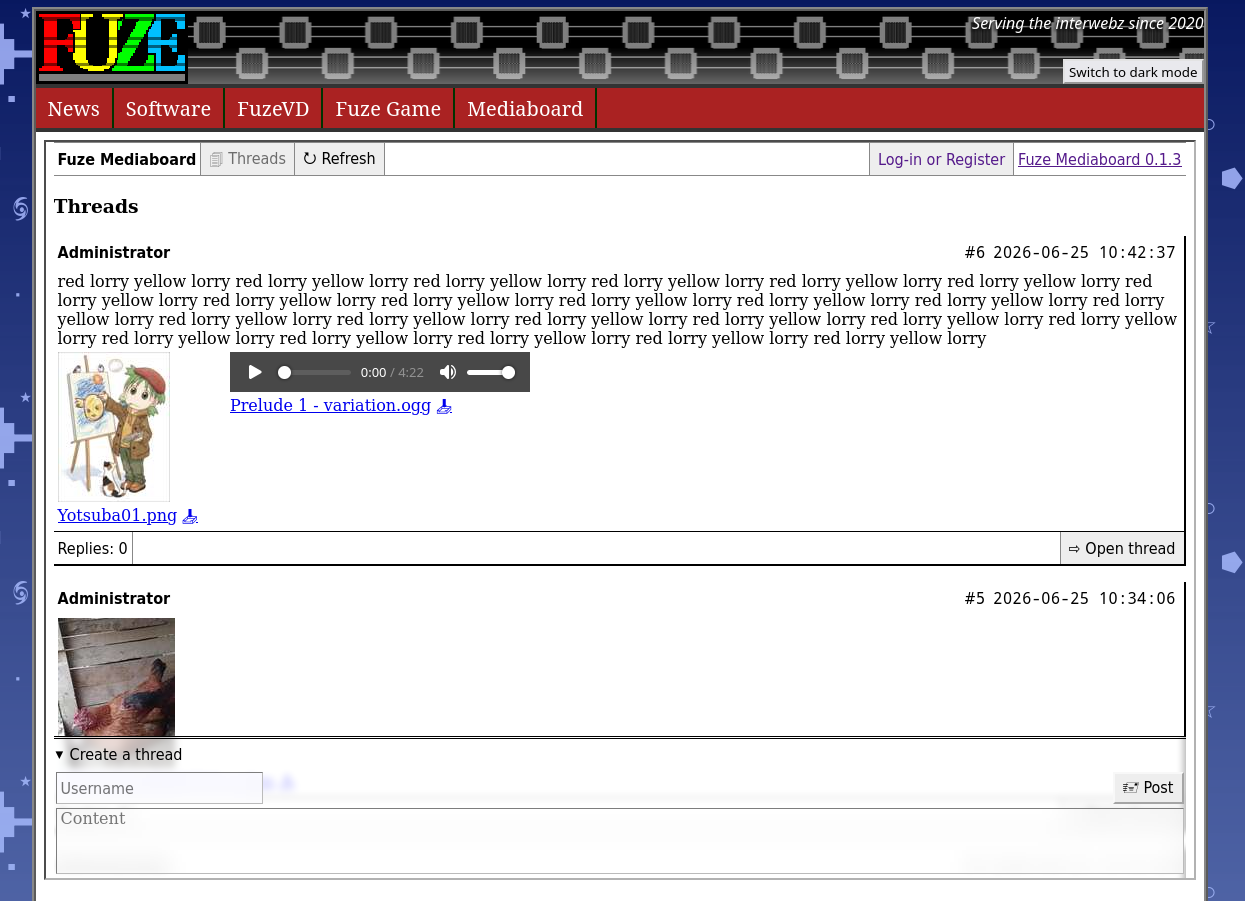
display=embed as a URL parameter:
<iframe src="http://localhost:8300/?board=board&display=embed"></iframe>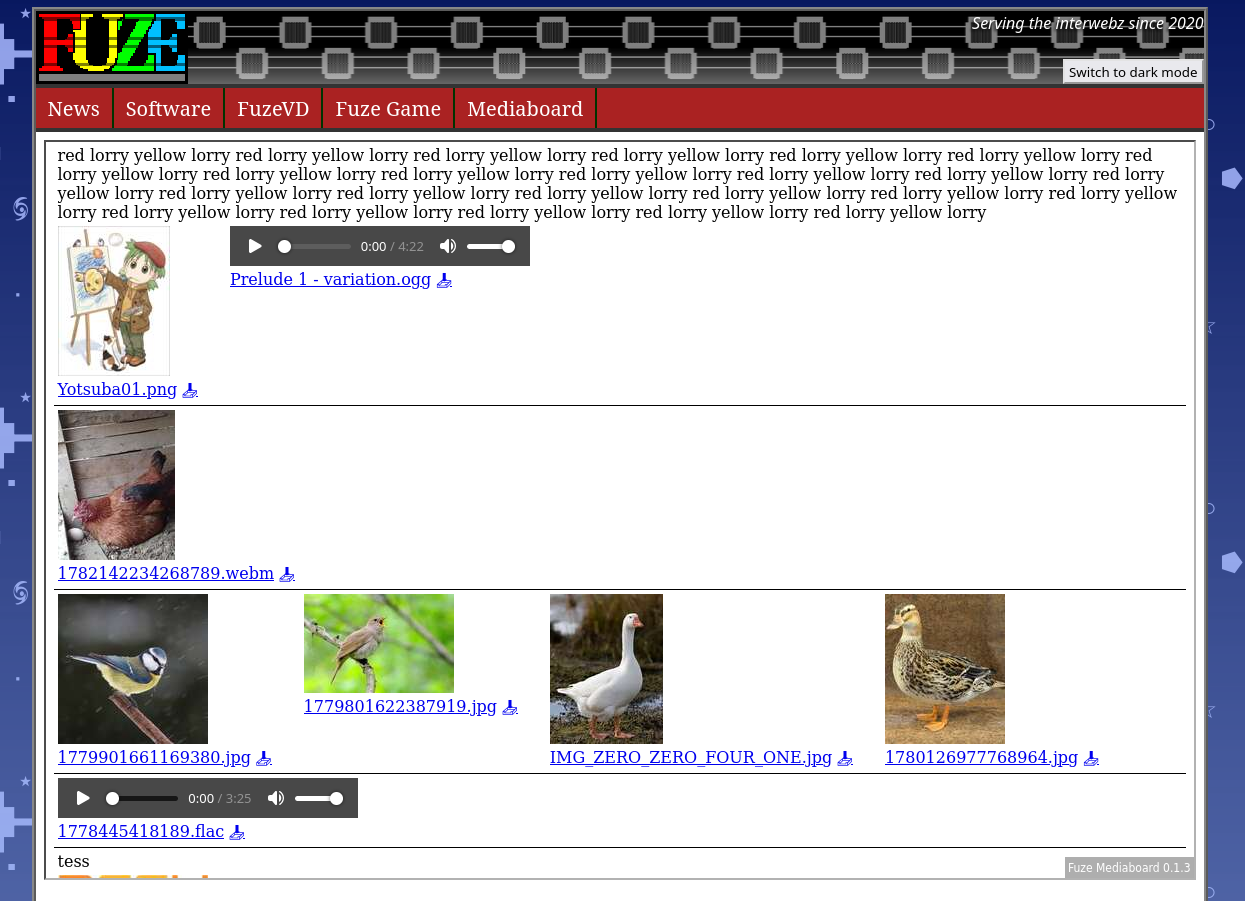
display=embeddisplay=embed also works with individual threads - just add &thread=0 (with a valid thread ID) to the path. Embedding threads has a number of potential uses, for example adding comment sections on blog posts, or an artist uploading his/her latest work.
Optional: ImageMagick support
In order for thumbnails to work, the software needs to be compiled with ImageMagick. The dependency is not included as a submodule; it must be installed seperately.
Getting ImageMagick
Clone and configure Imagemagick with the delegates for JPEG, PNG, WEBP, XML, and JPEG-XL.
You may need to install dependencies first. Usually a custom build of ImageMagick is preferred, to ensure all required delegates are installed. FreeBSD's package is sufficient so you can install that via pkg, but Debian's apt package is not. On Debian, you should apt install libxml2-dev and libjxl-dev
Change to the ImageMagick directory, and configure:
./configure --with-jpeg --with-jxl --with-png --with-xml
Ensure the configure output ends with all the delegates listed:
DELEGATES = jng jpeg jxl lcms png xml zlib
Then install:
make
sudo make install
Compiling Fuze Mediaboard with ImageMagick
Configure with -DWITH_MAGICK=ON.
Note: To build without ImageMagick, add -D WITH_MAGICK=OFF instead to the CMake -B command.
Using ImageMagick on a resource-constrained server
ImageMagick may use significant amounts of memory, which can crash the program if system memory runs out.
To set memory limits at runtime add these environment variables:
MAGICK_MEMORY_LIMIT=512MiB
MAGICK_MAP_LIMIT=1GiB
MAGICK_DISK_LIMIT=2GiB
At build-time, you can configure with these options:
--with-quantum-depth=8 number of bits in a pixel quantum (default 16)--with-cache=THRESHOLD set pixel cache memory threshold (default available memory)
Optional: WebRTC Live Rooms
Live Rooms are similar to Discord's voice channels. Users can share and receive live video and audio, from the desktop, microphone, and webcam. The main difference is Live Rooms are created and closed on-demand, whereas a Discord server has a set number of voice channels created by the server administrator(s).
When this feature is enabled, each Board gets a "Live" page, which will appear in the top navigation bar within each Board.
Compiling Fuze Mediaboard with WebRTC features
The dependencies for this are included as git submodules. The libdatachannel library is used by the server.Configure with
-DWITH_WEBRTC=ON.
ICE servers
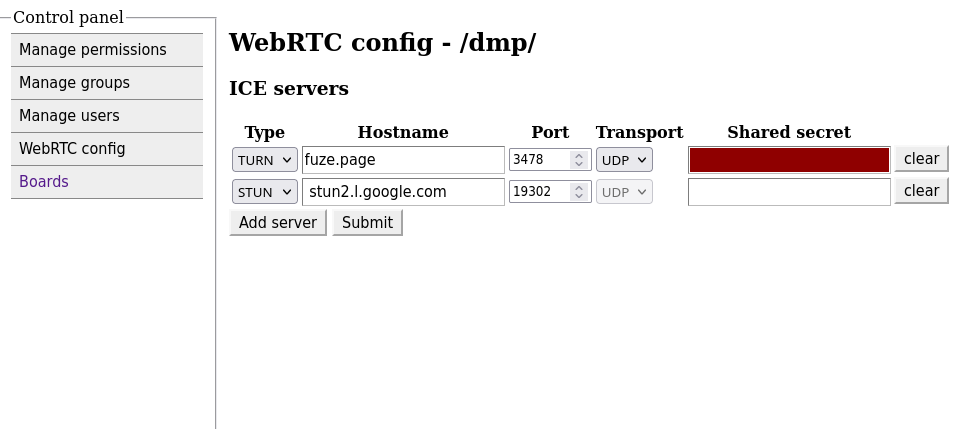
On the Manage Server page, there is a tab to configure WebRTC features. There will be a table with columns for "Type", "Hostname", "Port", "Transport", and "Shared secret". ICE servers are often needed to connect remote peers in live rooms, where they might not have a unique public IP, thanks to CGNAT.
The "Transport" and "Shared secret" values are only used for TURN.
Optional: Using PostgreSQL as the database
Alternatively, you can build with the PostgreSQL interface instead:
cmake -B build -D FUZEDBI_USE_POSTGRES=ON
Set the following options in config.ini to correspond to the database:
postgresql_host,
postgresql_port,
postgresql_user, and
postgresql_database_name.
Start cluster
This may be skipped on certain Linux distros such as Debian. Check if the server is already running with systemctl status postgresql or service postgresql status
initdb -D /var/db/postgres/18/main/
pg_ctl -D /var/db/postgres/18/main start
Create database
su -
su postgres
createdb fuze_mediaboard
psql -d fuze_mediaboard
fuze_mediaboard=# CREATE USER mediaboard_server WITH PASSWORD '
fuze_mediaboard=# GRANT ALL ON SCHEMA public TO mediaboard_server;
fuze_mediaboard=# \q
To import the database template, go back to your user account and run:
psql -U postgres fuze_mediaboard < database_template.sql
Add the following line to pg_hba.conf[documentation]. Insert it at the top of the table so that it won't be overridden by other settings:
local fuze_mediaboard mediaboard_server passwordmediaboard_server is the PostgreSQL user which interacts with the database named fuze_mediaboard.\
Set the environment variable FUZE_MEDIABOARD_PASSWORD with the same password used in the CREATE_USER statement earlier. Open a new terminal window or reboot your system to apply the change.
Developer's section
Contributions from any human are welcome. You are invited to use Fuze.page Mediaboard for any questions/discussion, or to e-mail me privately at mash@fuze.page.
AI glasnost
AI usage is not principally rejected, but any generated code must be marked with comments indicating the start and end of each AI-assisted section.
Example from CMakeLists.txt
elseif (file MATCHES "\.template\.[^\\\/]+$")
    message("----is template")
    set(frontend_definitions "")
    if (WITH_WEBRTC)
      set(frontend_definitions "-DWITH_WEBRTC=1")
    endif()
    # [AI glasnost] this section assisted by Claude Sonnet 5
    set(qualified_source ${FRONTEND_SOURCE_DIR}/${file})
    set(qualified_destination ${CMAKE_BINARY_DIR}/share/FuzeMediaboard/frontend/${file})
    set(depfile ${CMAKE_BINARY_DIR}/frontend_deps/${file}.d)

    get_filename_component(destination_dir ${qualified_destination} DIRECTORY)
    get_filename_component(depfile_dir ${depfile} DIRECTORY)
    file(MAKE_DIRECTORY ${destination_dir})
    file(MAKE_DIRECTORY ${depfile_dir})

    # Extract template name without .template.* suffix
    string(REGEX REPLACE "\.template\.[^\\\/]+$" "" template_basename "${file}")
    # Convert to uppercase token: index.html → INDEX
    string(TOUPPER "${template_basename}" template_token)
    string(REGEX REPLACE "[^A-Z0-9_]" "_" template_token "${template_token}")

    add_custom_command(
      OUTPUT ${qualified_destination}
      COMMAND ${CMAKE_C_COMPILER} # runs C preprocessor
              -E -P -CC -undef -nostdinc -x c -Wno-trigraphs -Wno-c23-extensions
              -D${template_token} ${frontend_definitions}
              -I ${FRONTEND_SOURCE_DIR} -I ${FRONTEND_SOURCE_DIR}/include
              -MMD -MF ${depfile} -MT ${qualified_destination}
              ${qualified_source} -o ${qualified_destination}
      DEPENDS ${qualified_source}
      DEPFILE ${depfile}
      COMMENT "Preprocessing ${file} :: ${template_token}"
      VERBATIM
    )
    list(APPEND frontend_list ${qualified_destination})
    # [AI glasnost] end AI-assisted section
  else()
- CMakeLists.txt
- MediaboardWebsocketSession.cppm
- Room.cppm
- dependencies/FuzeHttp/source/ViewPath.hpp
Creating an AppImage
To create Appdir required by AppImage, run:
cmake --install build --prefix AppDir/usr
Then to bundle the dependencies, use Linuxdeploy:
./linuxdeploy-x86_64.AppImage --appdir AppDir --output appimage
Other useful commands
Update submodules to the latest commit:
git submodule update --remote
Dump PostgreSQL database:
pg_dump fuze_mediaboard > mediaboard_dump.sql
Restore PostgreSQL database backup:
psql -X --set ON_ERROR_STOP=on fuze_mediaboard < mediaboard_dump.sql
git config pull.recurseSubmodules true - On git pull, update submodules to their specified commit
cmake -B build -DFUZEDBI_USE_POSTGRES=ON -DWITH_MAGICK=ON -DWITH_WEBRTC=ON -G Ninja -DCMAKE_BUILD_TYPE=Release - Full fat build
cmake -B build_debugpg -DFUZEDBI_USE_POSTGRES=ON -DWITH_MAGICK=ON -DWITH_WEBRTC=ON -G Ninja -DCMAKE_BUILD_TYPE=Debug -DWITH_ASAN=ON